Targeting and placement
Choose which pages, devices and visitors see a widget, schedule it, and place it anywhere with its widget code.
On this page
Who and where
The Audience tab of every widget sets who sees it and when:
| Setting | Options |
|---|---|
| Pages | All pages, or choose: Home, Product pages, Collections, Cart page, Other pages |
| Only for these products | Pick products and/or collections. The widget then shows only on those product pages |
| Only on URLs containing | Any number of URL snippets, for example /collections/sale. The widget shows when the page URL contains one of them |
| Devices | Desktop & mobile, Desktop only (750px and wider) or Mobile only |
| Visitors | Everyone, New (first seen in the last 30 minutes) or Returning |
| Start and End | Optional dates and times in your store's time zone. Empty = no limit |
Defaults: bars and popups show on all pages; countdowns, trust badges, delivery estimates and shoppable videos on product pages; sticky add to cart and low stock always on product pages only.
Where each widget appears
- Bars (announcement, free shipping) sit at the top or bottom edge of the page. Only one bar shows per edge: the one higher in your Widgets list. Move a widget up or down with the arrows in the list, or put it on the other edge.
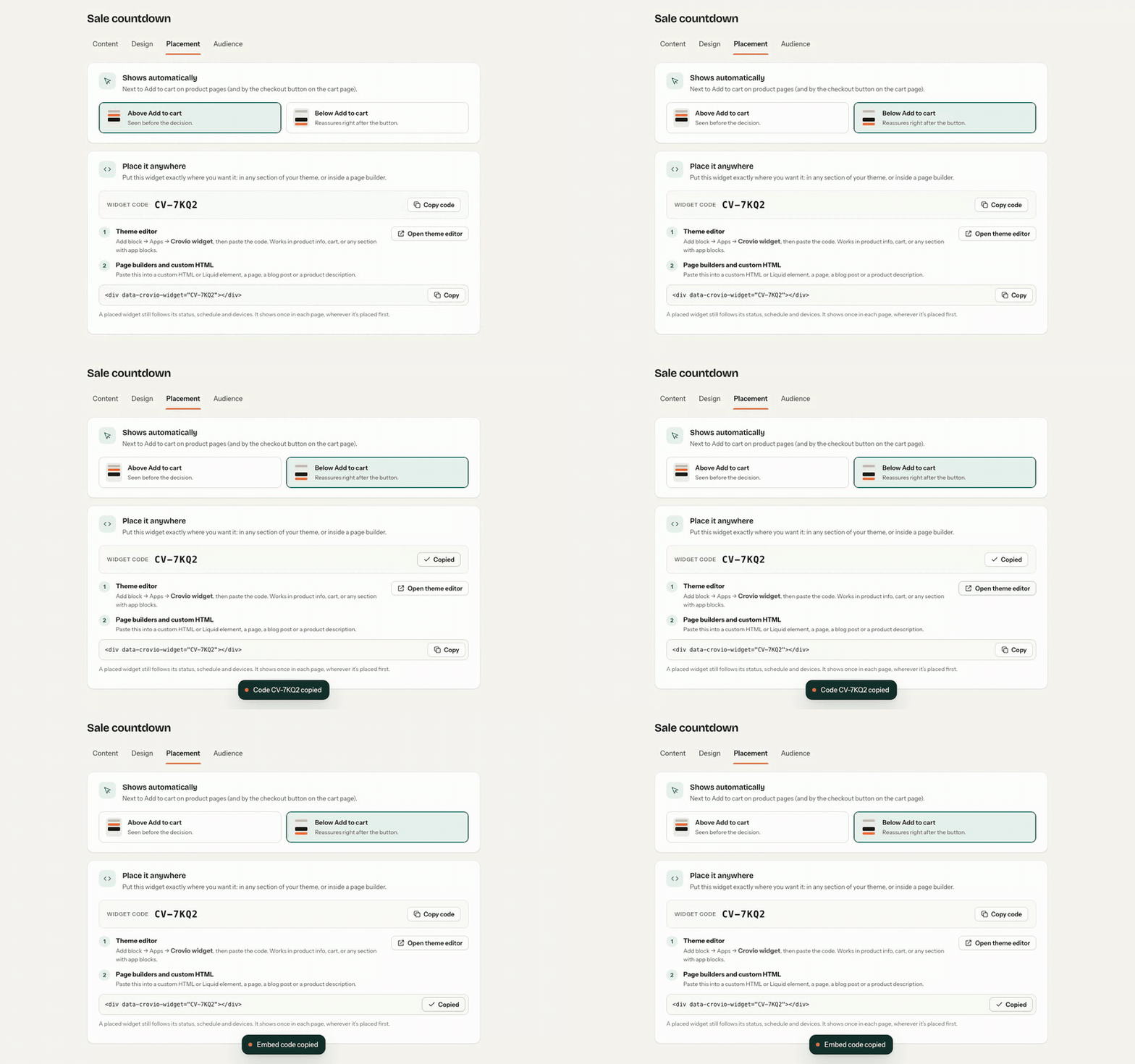
- Inline widgets (countdown, trust badges, low stock, delivery estimate, and the free shipping bar set to On the page) go Above Add to cart or Below Add to cart on product pages, and by the checkout button on the cart page.
- Sticky add to cart floats at the bottom or top of product pages.
- Popups open over the page.
- Shoppable videos go below the product info (on other pages, under the first section), at the top of the page, above the footer, or before or after an element you name. The Floating layout sits in a bottom corner. Set it to Only where I embed it to place it only with its code or a landing page section. Shoppable videos.
Place a widget exactly
Every widget has a widget code, like CV-7KQ2. Find it on the widget's Placement tab under Place it anywhere (click Copy code), or use Copy widget code in its menu in the Widgets list. Any widget type works with a code.
In your theme: the Crovio widget block
- Click Open theme editor on the Placement tab, or open Online Store → Themes → Customize and go to the template you want.
- In a section, click Add block → Apps → Crovio widget. It works in the product information section, the cart, and any section that takes app blocks.
- Paste the code into Widget code and save.
In the theme editor, the block shows a note with the code it holds. Nothing showing? Make sure the widget is Live and set to show on that device.
In a page builder or custom HTML
Paste the snippet from the Placement tab into a custom HTML or Liquid element, a page, a blog post or a product description:
<div data-crovio-widget="CV-7KQ2"></div>Placing a code on a page turns the widget on for that page, even where its page targeting doesn't reach (for example a page-builder landing page). A placed widget still follows its status, schedule and devices, and shows once in each page, wherever it's placed first. It doesn't also appear in its automatic spot on that page.
Several widgets on one page
Widgets of different types show together. If two bars want the same edge, the higher one in the list wins. Popups never open two at once.
Was this page helpful?