Shoppable videos
Add short videos shoppers can watch and buy from, tag products, pick a layout and place them on product pages, any page or a landing page.
On this page
The Shoppable videos widget shows short clips (customer videos, how-tos, unboxings) that shoppers can buy from without leaving the page. Tap a video and it opens a full-screen player with the products you tagged, their live price, a variant picker and Add to cart. On phones, the player is a swipe feed: swipe up for the next video.
1. Create the widget
Go to Widgets → New widget and pick Shoppable videos. It starts as a Draft, on product pages.
2. Add videos
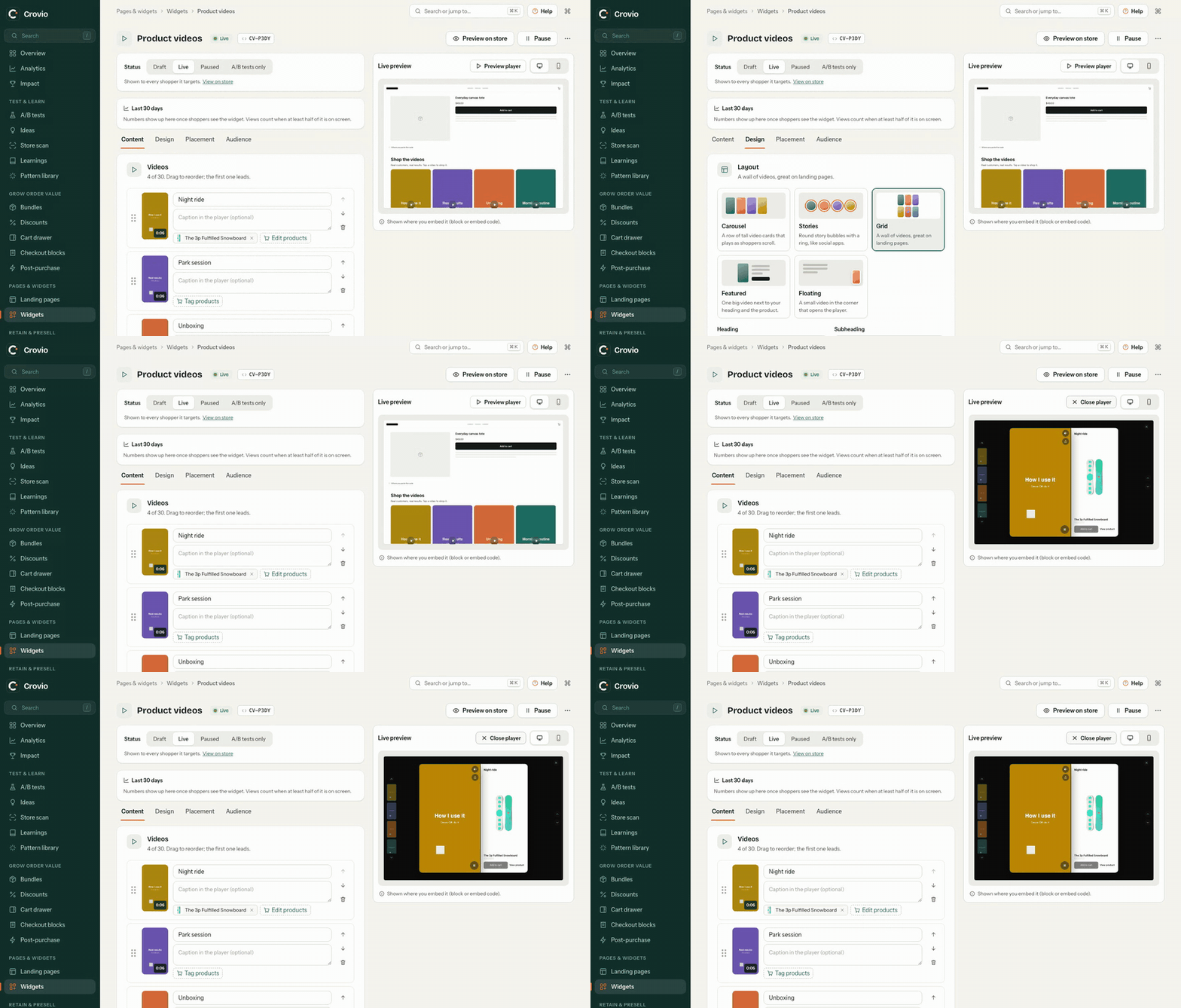
Click Add video (or drop files on the library). There are four ways in:
| Option | What it does |
|---|---|
| Upload videos | MP4, MOV or WebM, up to 1 GB each. Uploads go to your store's Shopify → Content → Files |
| Choose from files | Pick videos already in Content → Files, searchable by file name |
| From a product | Use a video from a product's media |
| Paste a link | Any https link to a video file, with an optional poster image shown before it plays |
Uploaded videos show Processing while Shopify prepares them; you can keep editing in the meantime. A widget holds up to 30 videos. Drag videos to reorder them.
For each video you can add:
- a title (for example "Sarah's morning routine") and a caption shown in the player,
- up to five products. The player shows them with live prices and stock, a variant picker and Add to cart.
3. Pick a layout
| Layout | What shoppers see |
|---|---|
| Carousel | A row of tall video cards that plays as shoppers scroll |
| Stories | Round story bubbles with a coloured ring |
| Grid | A wall of videos, great on landing pages |
| Featured | One big video next to your heading and the product |
| Floating | A small video in the corner that opens the player. Shoppers can close it for their visit |
Then set the heading and subheading, how many cards are in view on desktop and phones (a fraction like 4.3 shows part of the next card, so shoppers know to scroll), columns for the grid, the story circle size or the floating corner, titles below or on the video, the play icon, colours and corner radius. The Live preview beside the settings is the storefront widget.
4. Playback and shopping
- Play previews: cards loop silently while on screen and pause when scrolled away. Videos load only when needed.
- Auto-advance: slides one card every few seconds until a shopper scrolls it. Off for shoppers who reduce motion.
- Sound on in the player, Loop each video and Endless loop (the row wraps around).
- Product under each card: shows the first tagged product, with its price.
- Rename the Add to cart and View product buttons.
5. Place it
Position on the page:
- Below the product info (on other pages, under the first section), Top of the page or Above the footer,
- After an element or Before an element: enter a CSS selector, for example
#shopify-section-reviews, - Only where I embed it: nothing shows automatically; place it with the theme block or a landing page section.
On product pages, choose which videos show:
| Option | Shows |
|---|---|
| All videos | Every video in the widget, on every product page it targets |
| Its videos, else all | The videos tagged with this product; if none are, all videos |
| Only its videos | Only the videos tagged with this product; nothing when none are |
The widget's Audience tab sets pages, products, devices, visitors and dates, like every widget. Targeting and placement.
Embed it anywhere
- Theme editor: add the Crovio widget block and set its type to Shoppable videos. To show one specific widget, paste its ID into Widget ID. Place a widget exactly.
- Landing pages: add the Shoppable videos section to any Crovio landing page and pick the widget. Sections and designs.
An embedded widget shows wherever you place it, whatever its page targeting, as long as it's Live (or Only in A/B tests and the shopper's group turns it on) and inside its schedule.
Go live and test it
Set Status to Live, or click Start A/B test to compare the page with and without the videos. Two events are recorded for shoppers in a test, and both can be used as goals: video_play (a shopper opened a video) and video_add_to_cart (they added a product from the player). A/B test a widget.
Was this page helpful?