Discount codes in widgets
Check that a popup's discount code exists, and create it in Shopify in one click with the value, minimum order and end date you choose.
On this page
A popup set to Copy a code shows shoppers a discount code. If that code doesn't exist in Shopify, shoppers copy a code that fails at checkout. Crovio checks it for you, and can create it in one click.
Crovio checks the code
As you type the code in the popup's Content panel, Crovio looks it up in Shopify:
- The code exists: Crovio shows the discount's name, summary, status (Active, Scheduled or Expired) and end date, with View in Shopify.
- No discount uses it: Crovio warns that shoppers would copy a code that doesn't work, and offers New discount.
Create the discount in one click
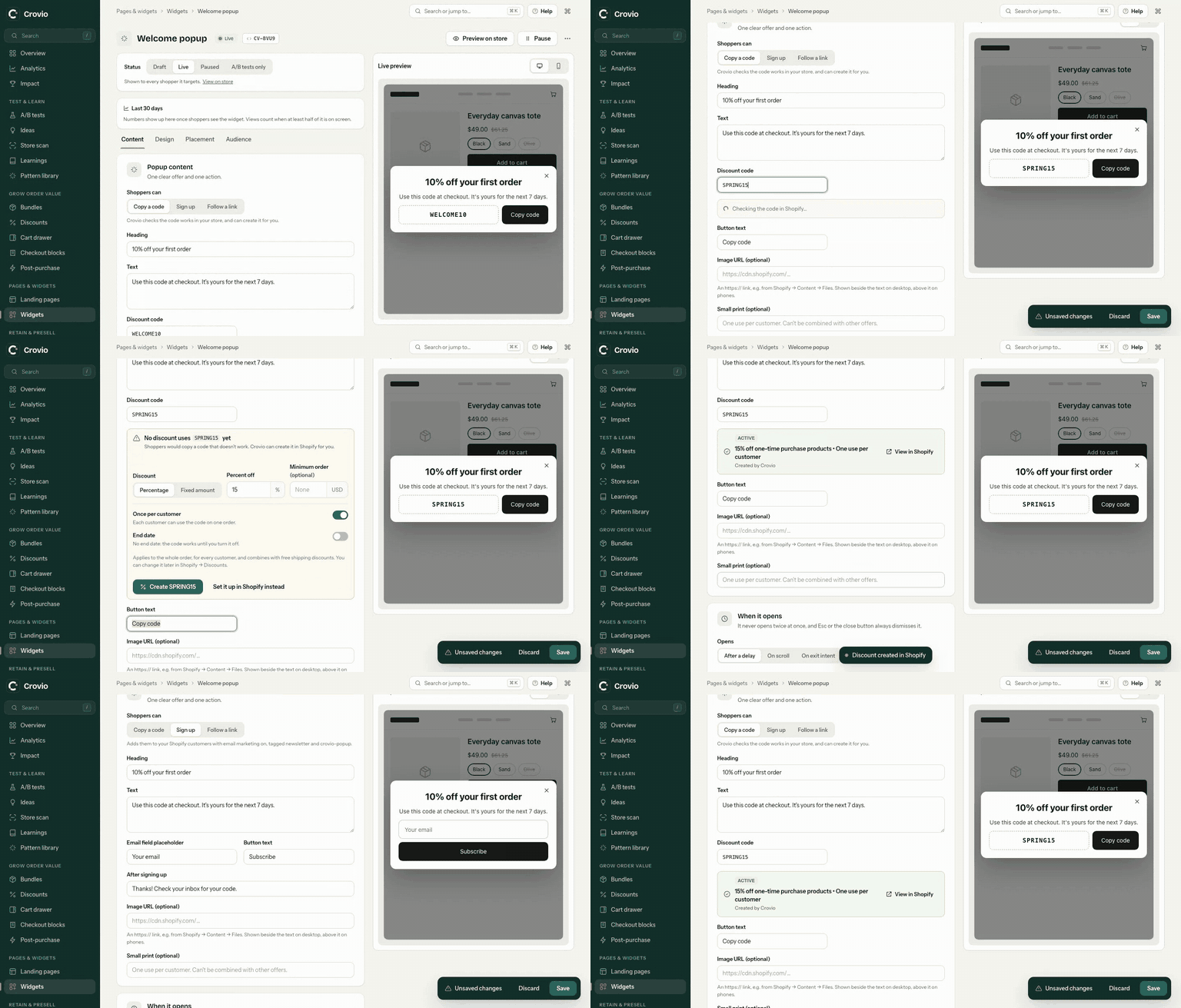
Click New discount and choose:
| Setting | Options |
|---|---|
| Discount | A percentage or a fixed amount off. Crovio suggests a value from the code, for example 10% for WELCOME10 |
| Minimum order | Optional. The order subtotal needed to use the code |
| Once per customer | On by default: each customer can use the code on one order |
| End date | Optional. Without one, the code works until you turn it off |
Crovio creates the code in Shopify → Discounts, starting now. It applies to the whole order, for every customer, and combines with free shipping discounts. You can change anything about it later in Shopify.
Codes can use letters, numbers, - and _ (no spaces).
Going live with a missing code
If you click Go live while the popup's code doesn't exist, Crovio asks first. Choose New discount & go live, or Go live without it if you'll create the code elsewhere.
Check the result
Open the popup on your store, copy the code and apply it at checkout. If it's refused, check the discount's dates, minimum order and whether it combines with other discounts in Shopify → Discounts.
Was this page helpful?