The customer portal
Where customers manage their subscriptions, what they can change themselves, and pause lengths.
Subscribers manage their subscriptions under Subscriptions in their customer account (Shopify's new customer accounts). They see each subscription's products, next order date and status, and past subscriptions. You choose what they can do in Subscriptions → Settings → Customer portal; the preview on the right shows what customers see. Whether customers can cancel, and the offer each cancel reason gets, are on the Cancel offers tab. Cancel offers
Where customers find it
- Shopify admin → Settings → Customer accounts → use new customer accounts.
- In the customer accounts editor, add Subscriptions to the account menu (the page comes with Crovio), or keep the Manage subscriptions card on the Orders page.
What customers can change
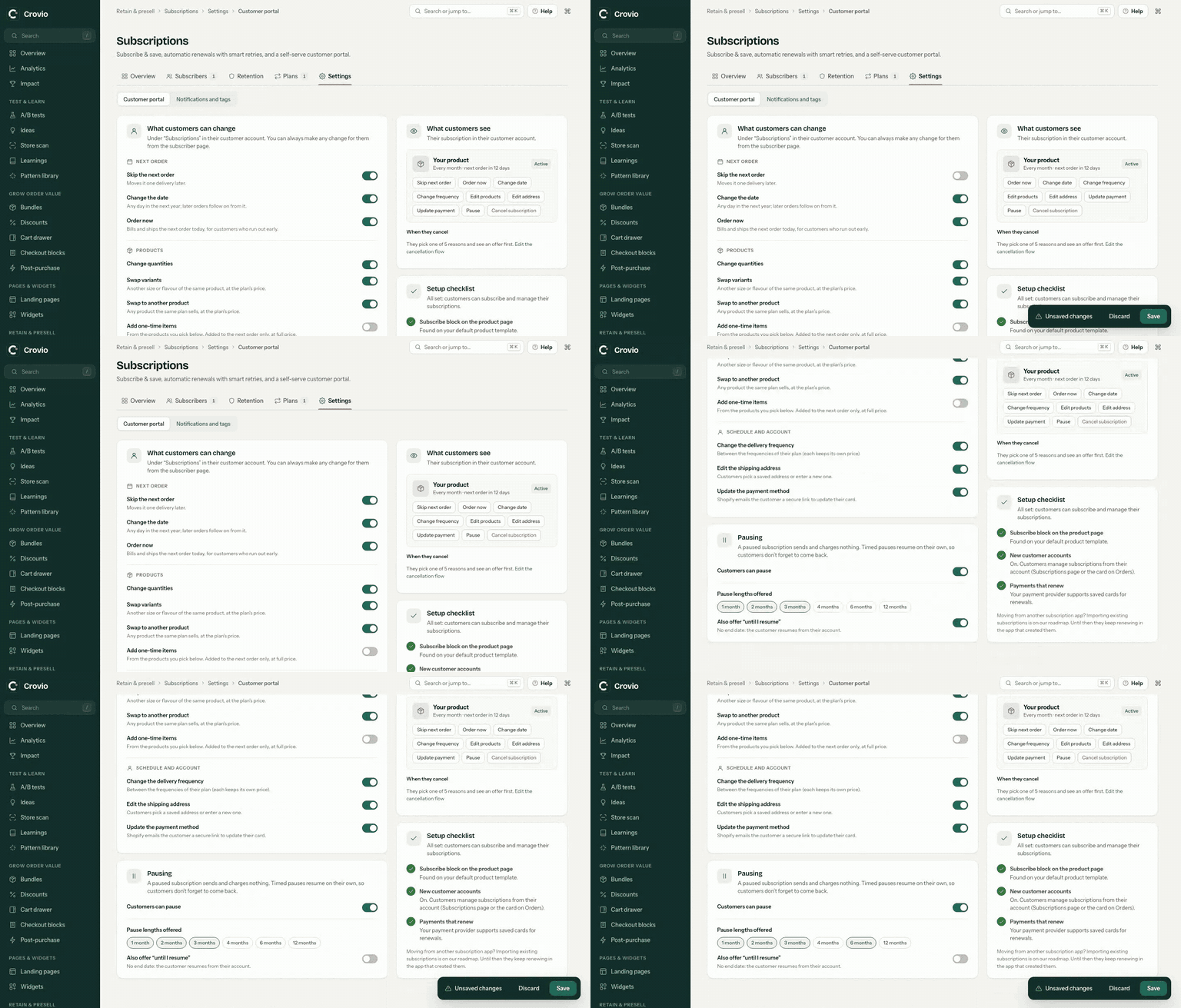
| Action | What it does |
|---|---|
| Skip the next order | Moves it one delivery later |
| Change the date | Any day in the next year; later orders follow on from it |
| Change the delivery frequency | Between the frequencies of their plan (each keeps its own price) |
| Change quantities | |
| Swap variants | Another size or flavour of the same product, at the plan's price |
| Swap to another product | Any product the same plan sells, at the plan's price |
| Add one-time items | From products you pick; added to the next order only, at full price |
| Order now | Bills and ships the next order today, for customers who run out early |
| Edit the shipping address | Customers pick a saved address or enter a new one |
| Update the payment method | Shopify emails the customer a secure link to update their card |
You can always make any of these changes for them from the subscriber's page.
Pausing
Switch on Customers can pause and pick the Pause lengths offered (for example 1, 2 or 3 months). Timed pauses resume on their own, so customers don't forget to come back. Also offer "until I resume" adds a pause with no end date. A paused subscription sends and charges nothing.
Cancelling
Customers can cancel from the portal when Customers can cancel from their account is on. Before they confirm, they pick a reason and see one offer to stay that fits it. Set the reasons and offers on the Cancel offers tab. Cancel offers
Was this page helpful?